Have you already created a document to be signed in .doc, .docx, .odt, .pdf, .jpg or .xlsx format? Then send it for signing by following these steps. An alternative to this is filling in the details in ready-made templates in Signi
Uploading file(s) to Signi
Simply import it into the Signi app. You can find this option in your Workspaces under the Create document option, followed by Select files. If you select multiple files at once, the documents will be signed together in one set.
The next section is called Recipients, where you can select the proposers and the counterparties.
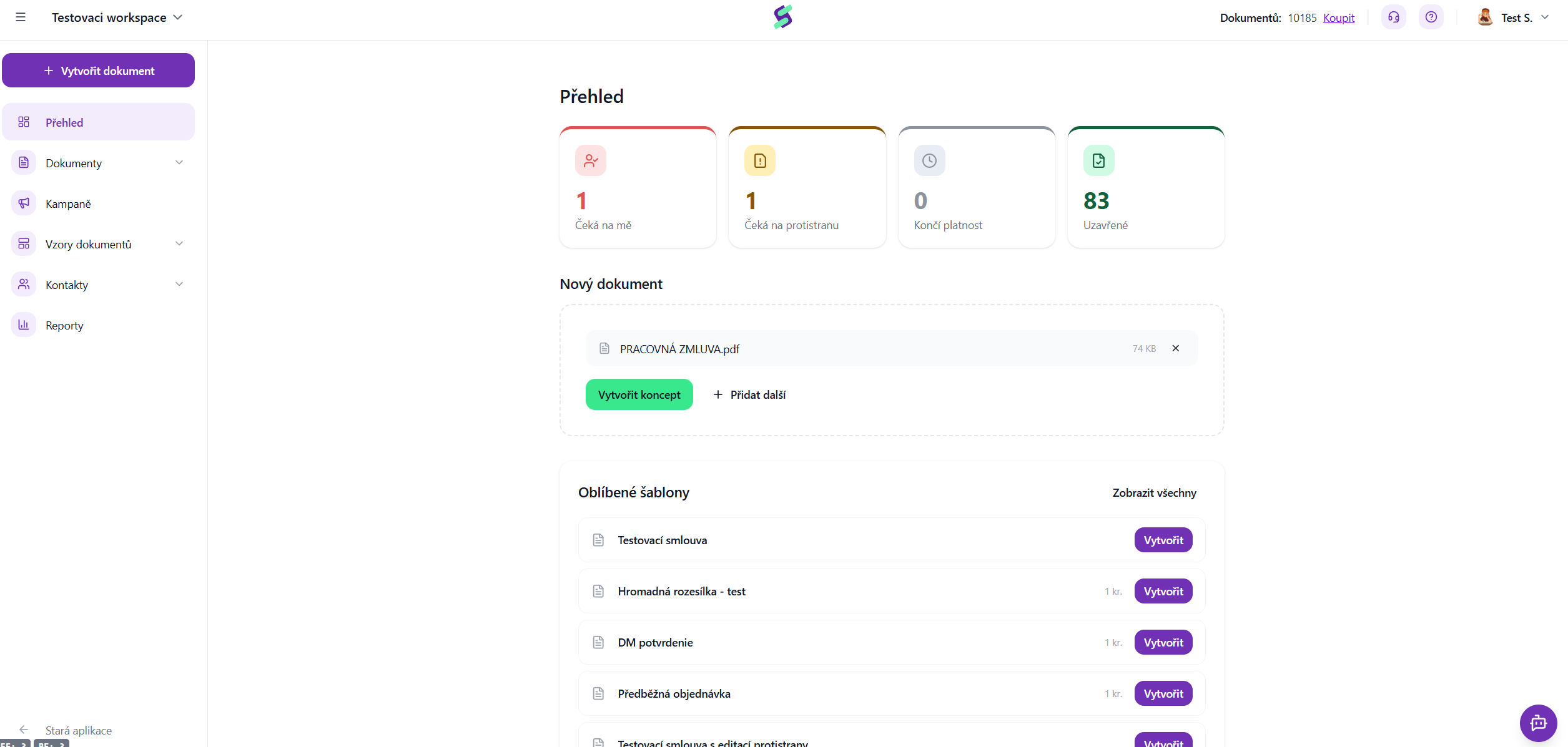 The app will then redirect you to select the target file.
If everything goes smoothly, your file is uploaded.
In the next step, the app will guide you to the signing scenario page, where you define who will sign and when, or approve, verify their identity remotely, and so on.
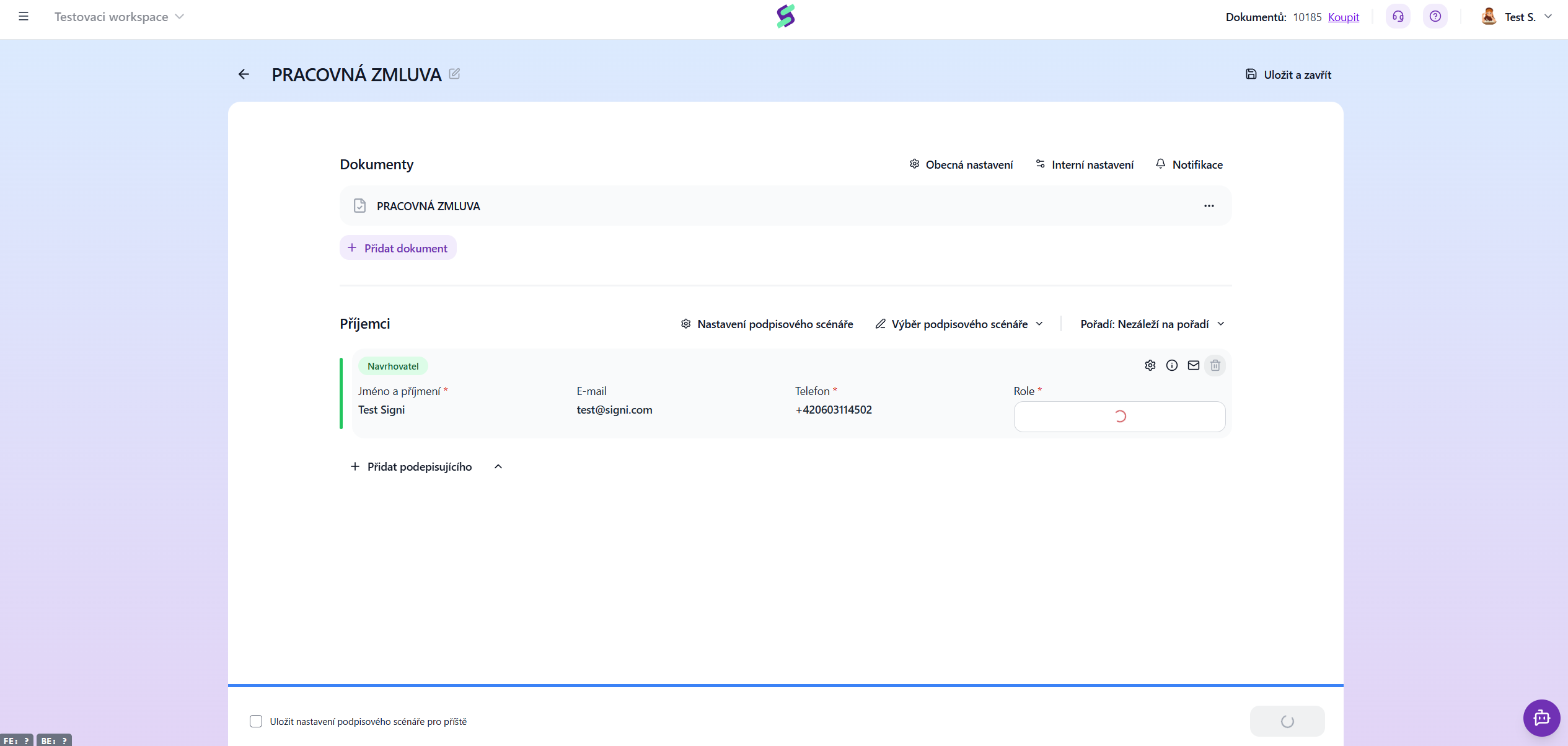
The General settings button:
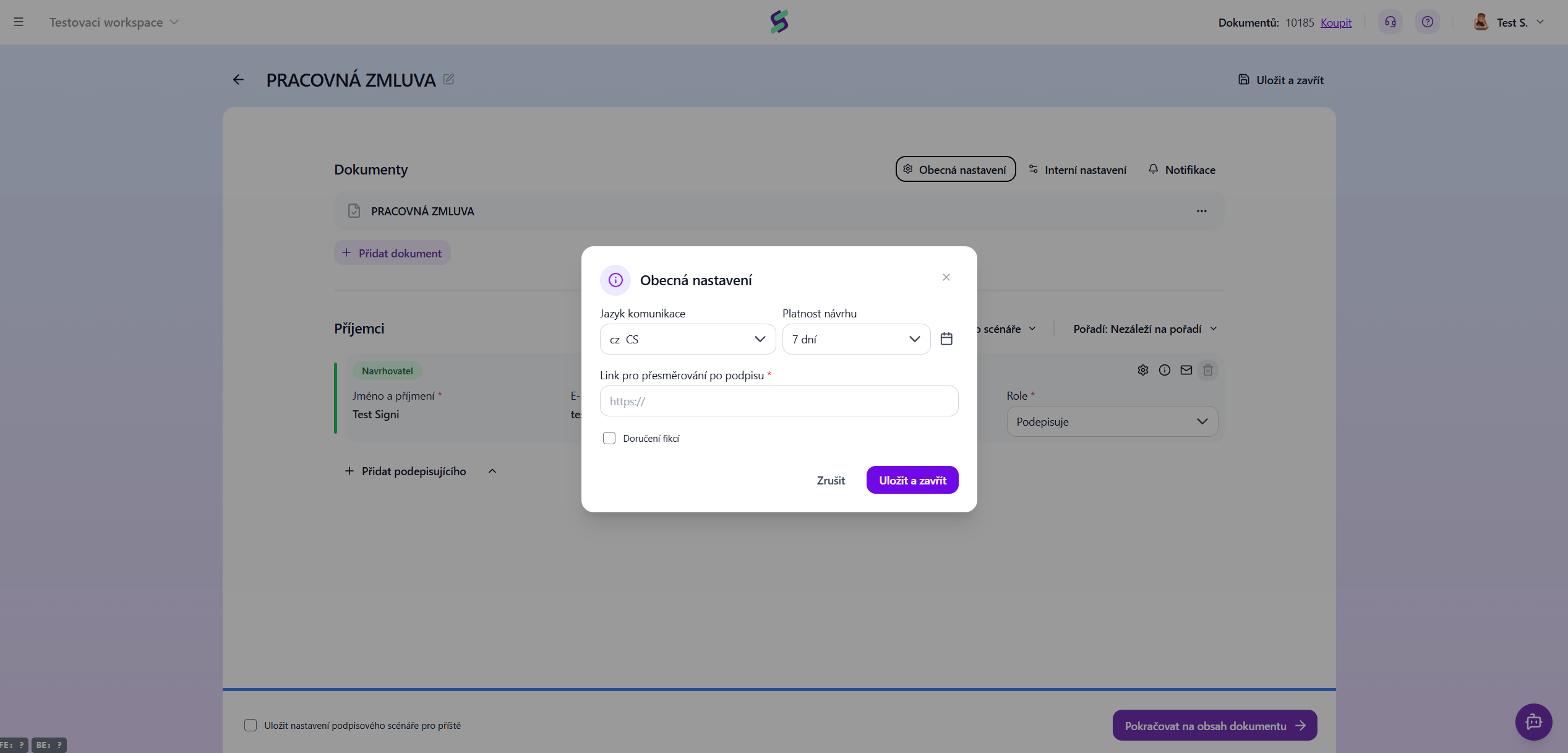
Communication language – using this button you can set the language in which we will send notification emails and SMS messages.
Draft validity – here you can set the validity of the link for signers in calendar days, or click the calendar icon to select an exact date.
Redirect link after signing – here you can set which web page the signing parties should be redirected to after signing.
The Internal settings button:
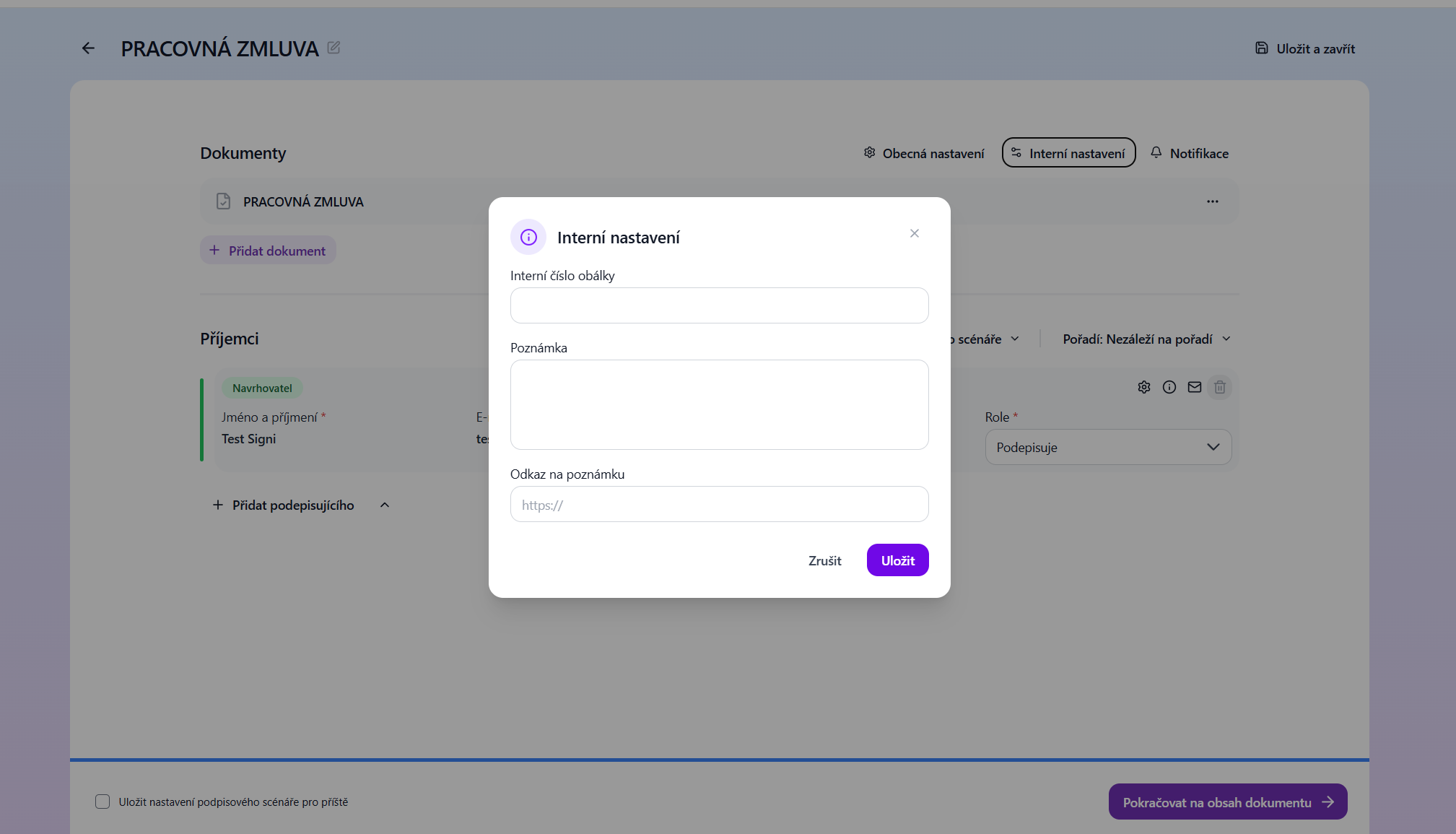
Internal envelope number – the document number field is not mandatory and serves for your internal numbering. The number can contain any number of digits and letters.
Note – here you can set an internal note for workspace members.
Link in note – here you can enter a link that will be displayed as a note when the document is opened.
The Notifications button:
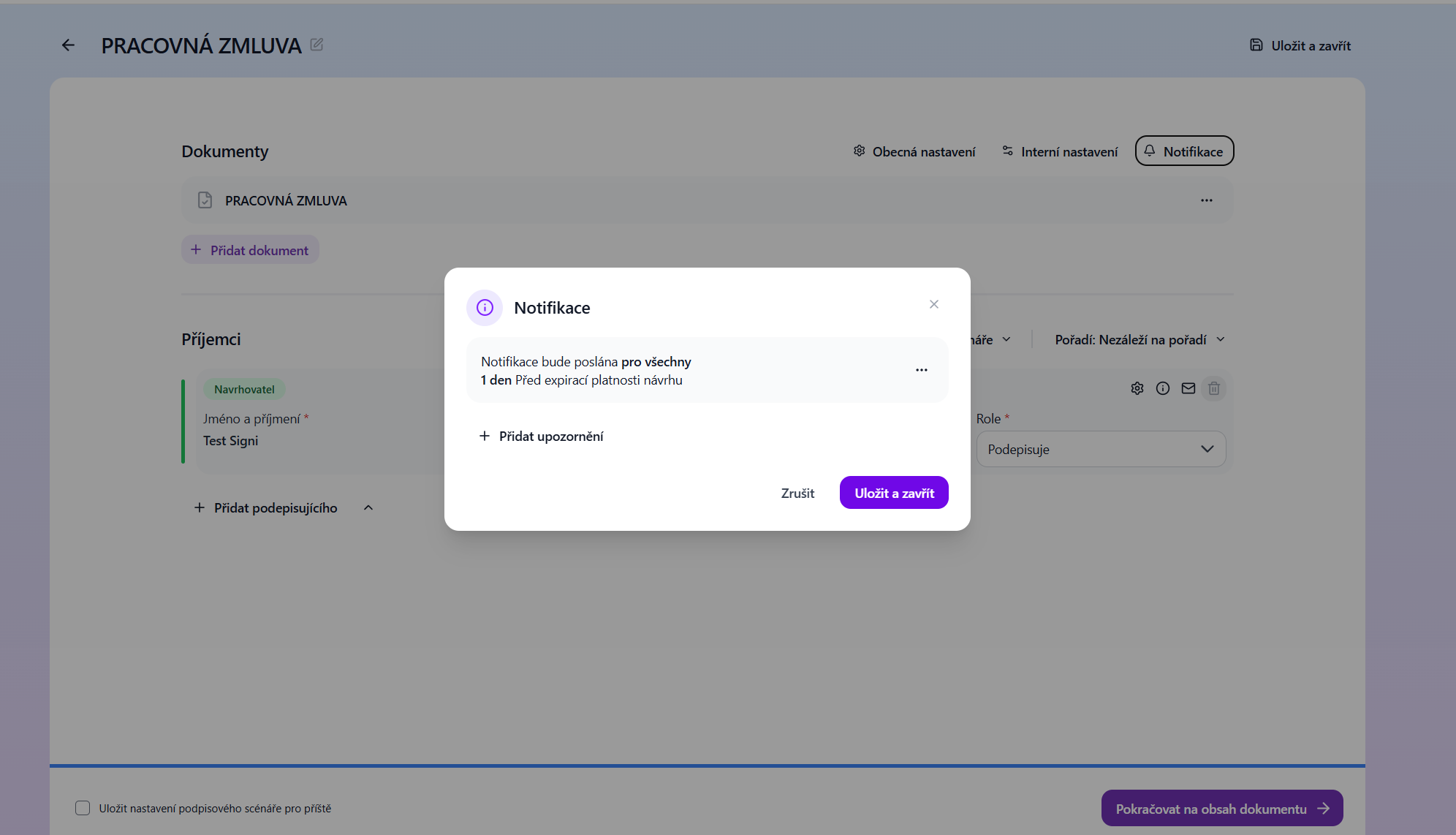
In this part you can specify how often you want to send reminders to signers.
The last button in this section is the Add attachments button, which lets you upload attachments to the document.
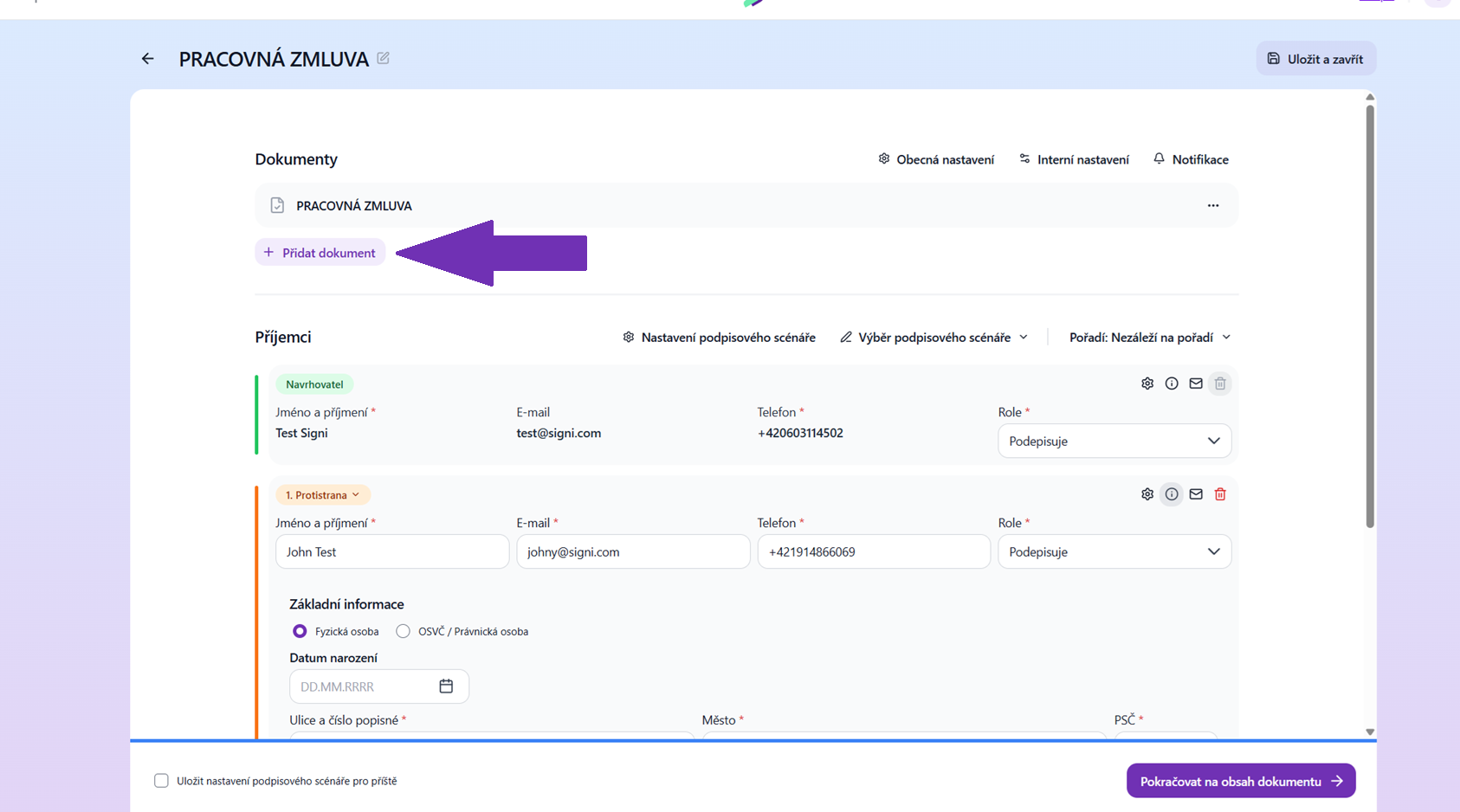 You can conclude the document on a single device, meaning that both you and the counterparty will sign on your tablet, smartphone, or PC. In that case, check the Signing on one device option (one of the paid features), which you can find under Signing scenario settings. More information can be found in the chapter Signing on one device
In this section you will also find, for example, a button for detecting placeholders or the option to have the document locked after signing (without locking, this document can be signed again).
The next section is called Recipients, where you can select proposers and counterparties, or signing roles - Signing groups (roles) in Signi
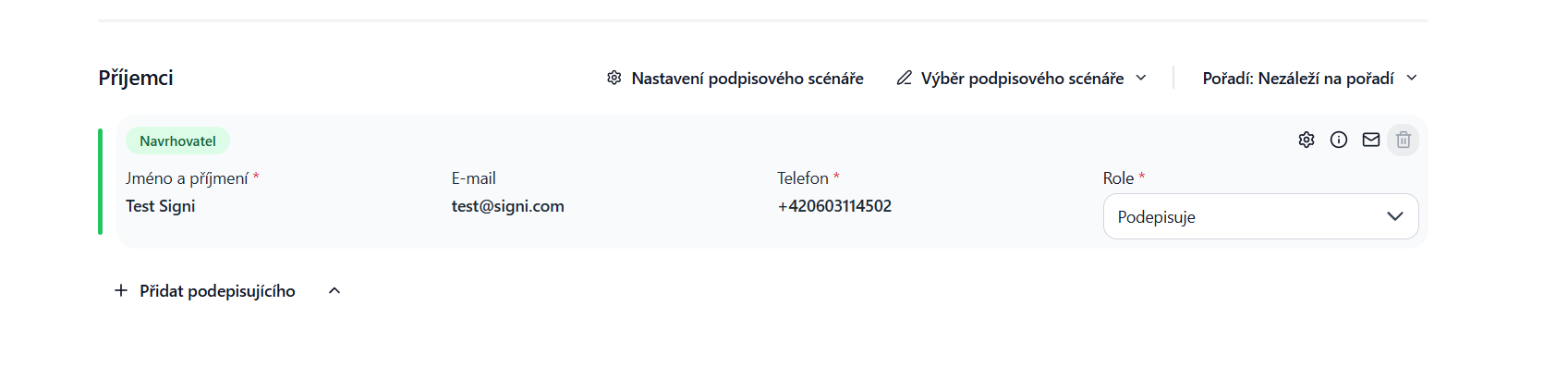
If you have invited other team members to your workspace and granted them signing rights, you can select someone from the team as the proposer instead of yourself.
Envelope: As soon as you click on the envelope, an option appears to write a personalized message for each user. You can copy the message to everyone using the "copy message to others" button.
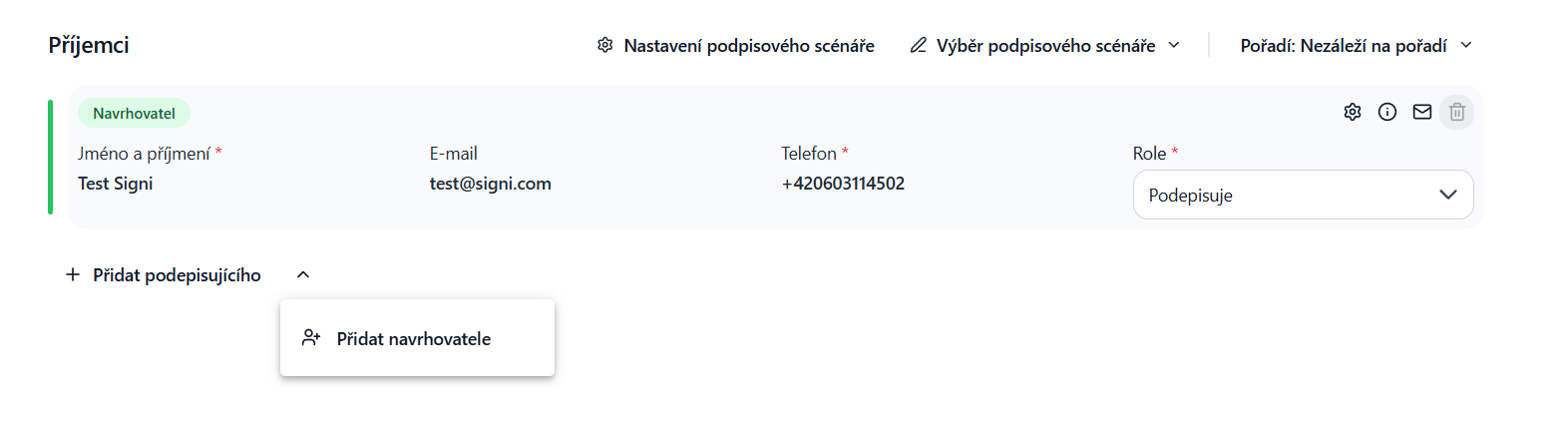
If you need to add multiple proposers to the signing scenario, you must use the arrow next to the Add signer button.
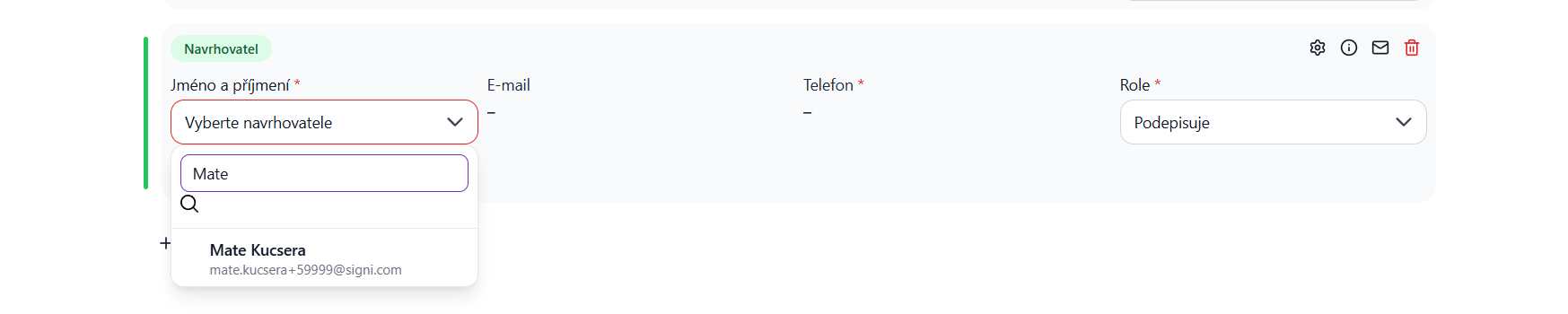
Next, you continue by selecting the counterparty, by clicking the Add signer icon. The drop-down list when selecting a counterparty is active only if you already have some saved contacts, or you have already sent some document. Your history will then be recorded here.
If you are about to send your first document, or if it is a new contact, you must enter the details manually.
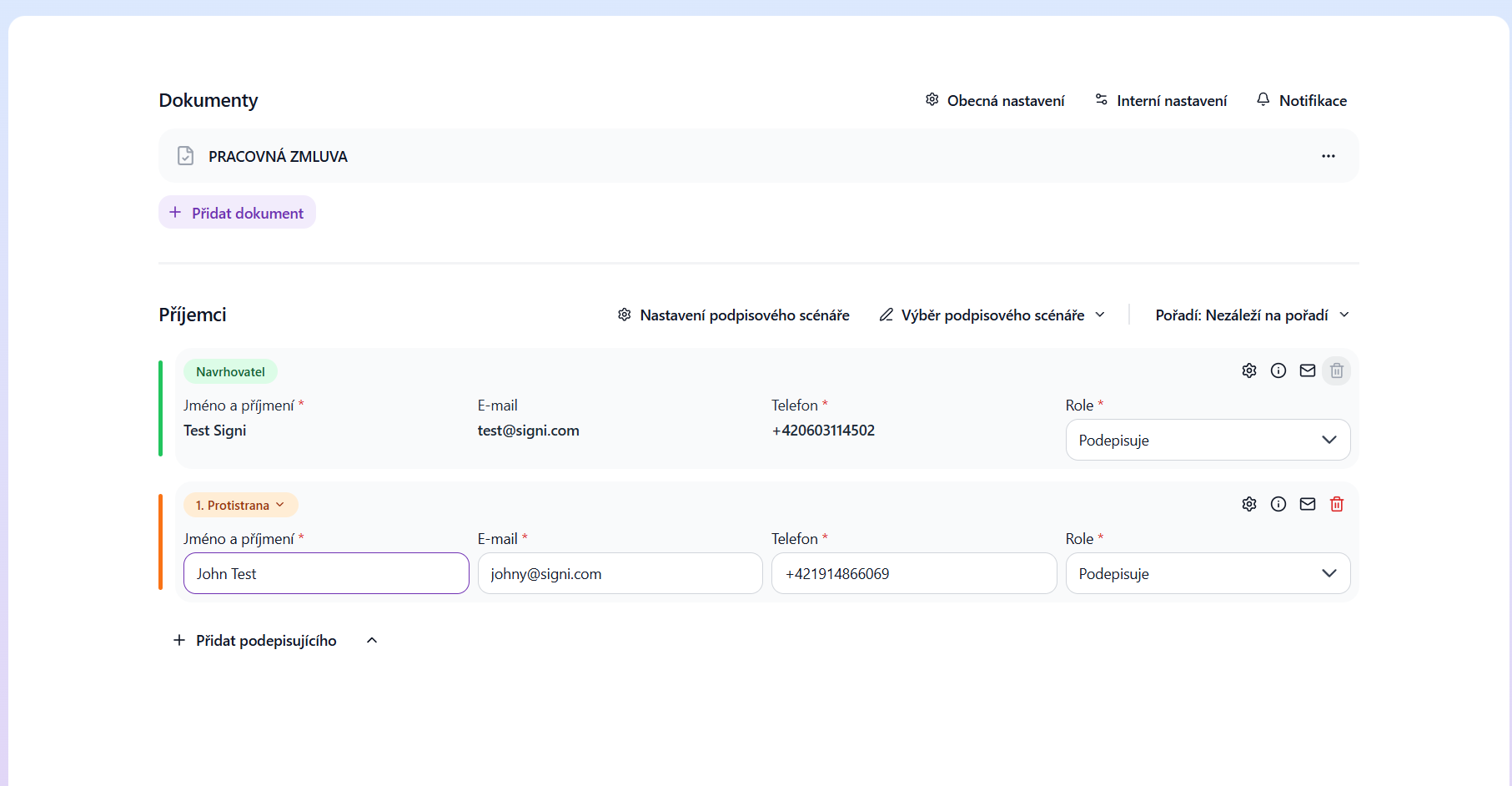 The document can be concluded with a self-employed person and a natural or legal person.
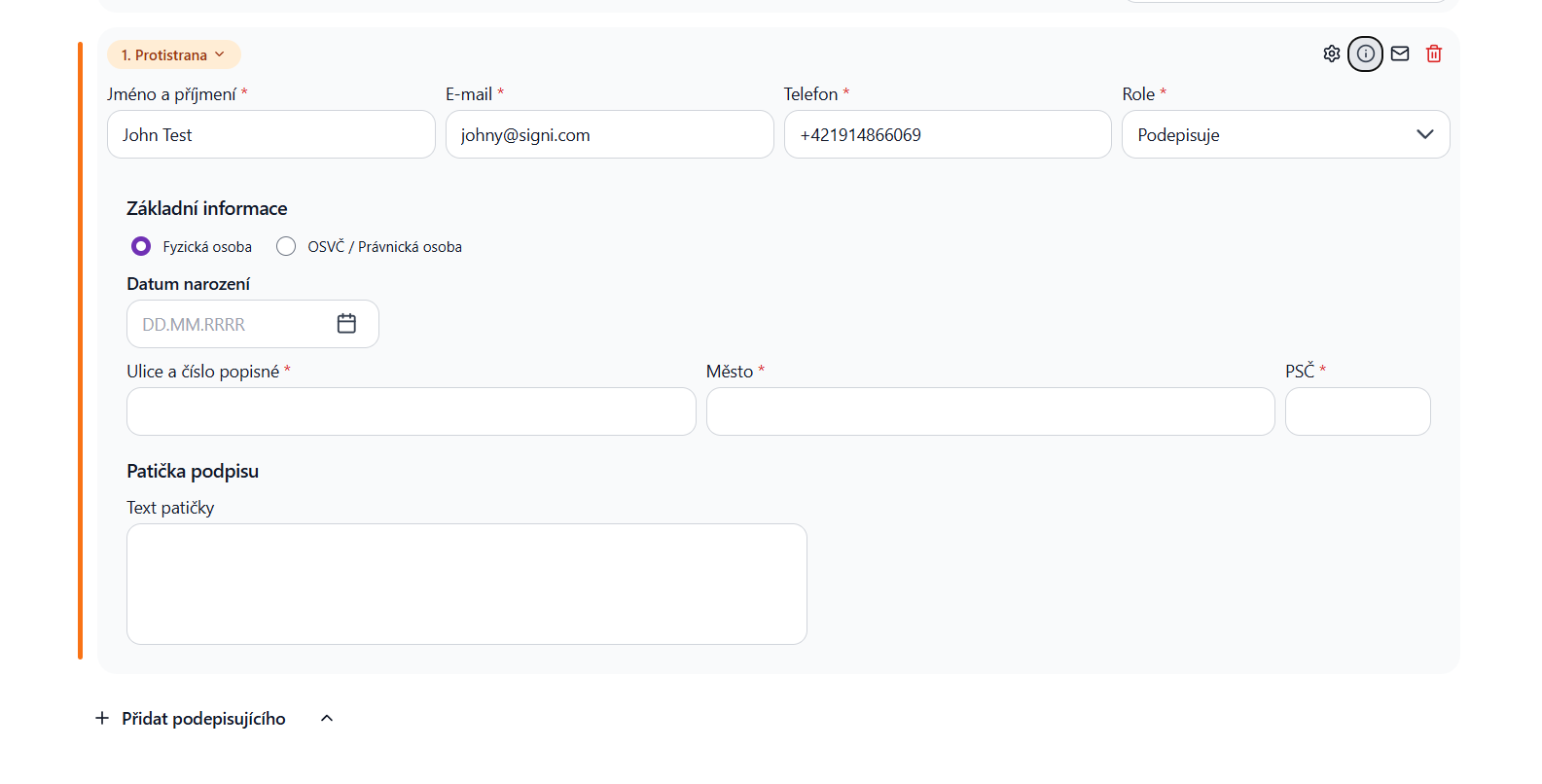
Email field: This field is mandatory, and a notification about the new document draft is sent to the entered email address of the counterparty, as well as a notification about the expiration of the document draft, and after signing, an email with the signed document in PDF format is sent to this address. We recommend providing an email address you have already used to communicate with the counterparty, to eliminate any doubt about ownership and access to this mailbox.
Phone field: This field is not mandatory by default, but we recommend filling it in (otherwise the phone number will be requested from the counterparty at the moment of signing). An SMS notifying about the new document draft is sent to this phone number, along with a one-time PIN used to verify and sign the document.
First and last name fields: These fields are mandatory; this is the person who will sign the document on behalf of the counterparty.
The other fields may be filled in automatically after entering the company ID (IČ) via the ARES register. The rest of the details are only filled in in the Templates module, where these details are then written directly into the document template. When uploading a finished document from a file, they are not necessary.
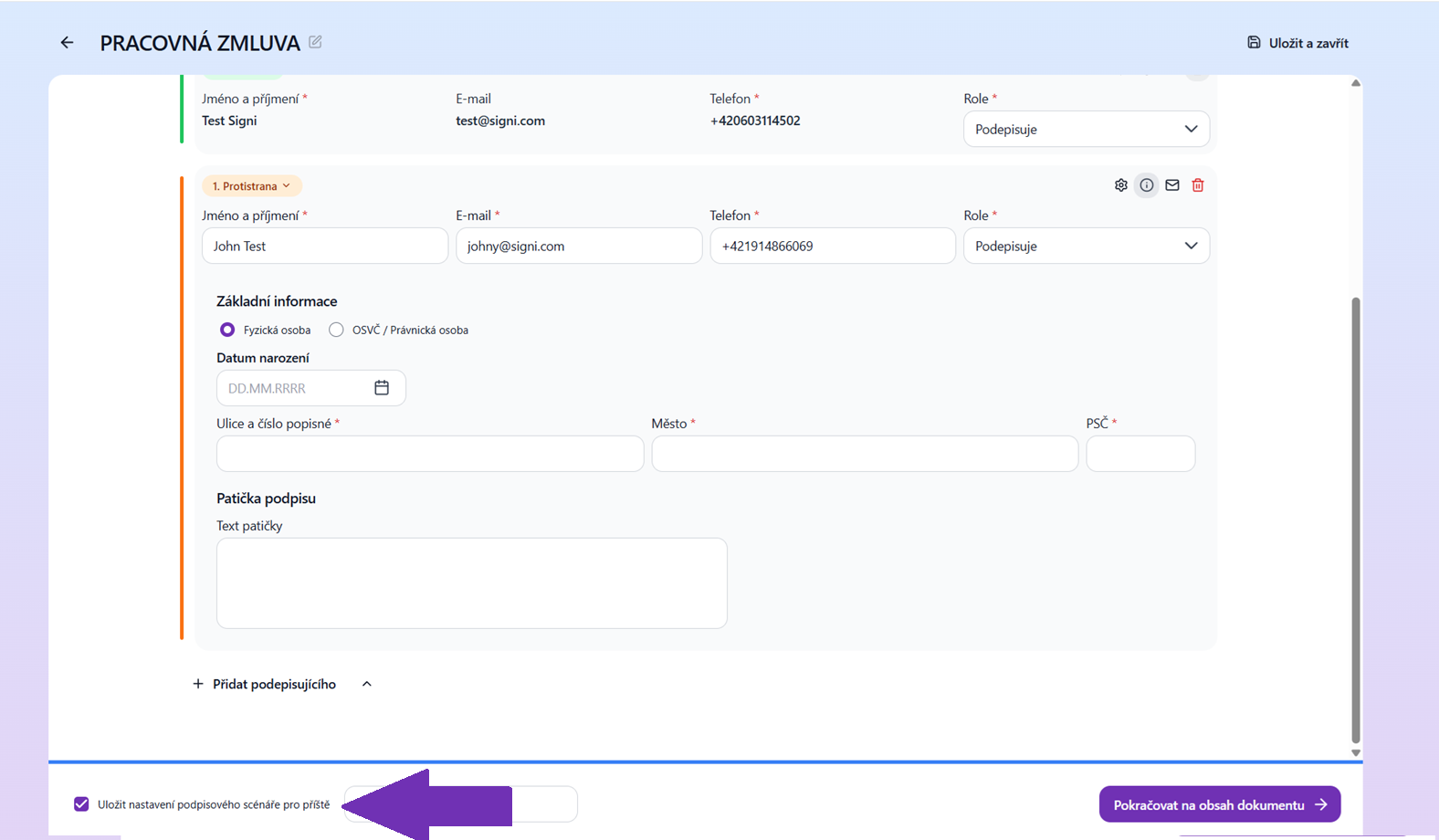
You can also save the signing scenario. If you have, for example, an approval process where the people do not change, you can save this scenario and use it when uploading another document by clicking the Select signing scenario button.
Types of signatures and whether they include SMS verification
- Signs: YES
- Signs using SMS: YES
- Approves: YES
- Signature with certificate: NO Note: The SMS code is not entered; instead, the certificate code is entered.
- Signature via BankID: NO Note: Verification takes place externally via your bank.
- RemoteSign: NO Note: Verification via the RemoteSign app is used.
- Acknowledgment: NO
Determining signature placement
Next you continue to Document content.
Now all contracting parties are displayed:
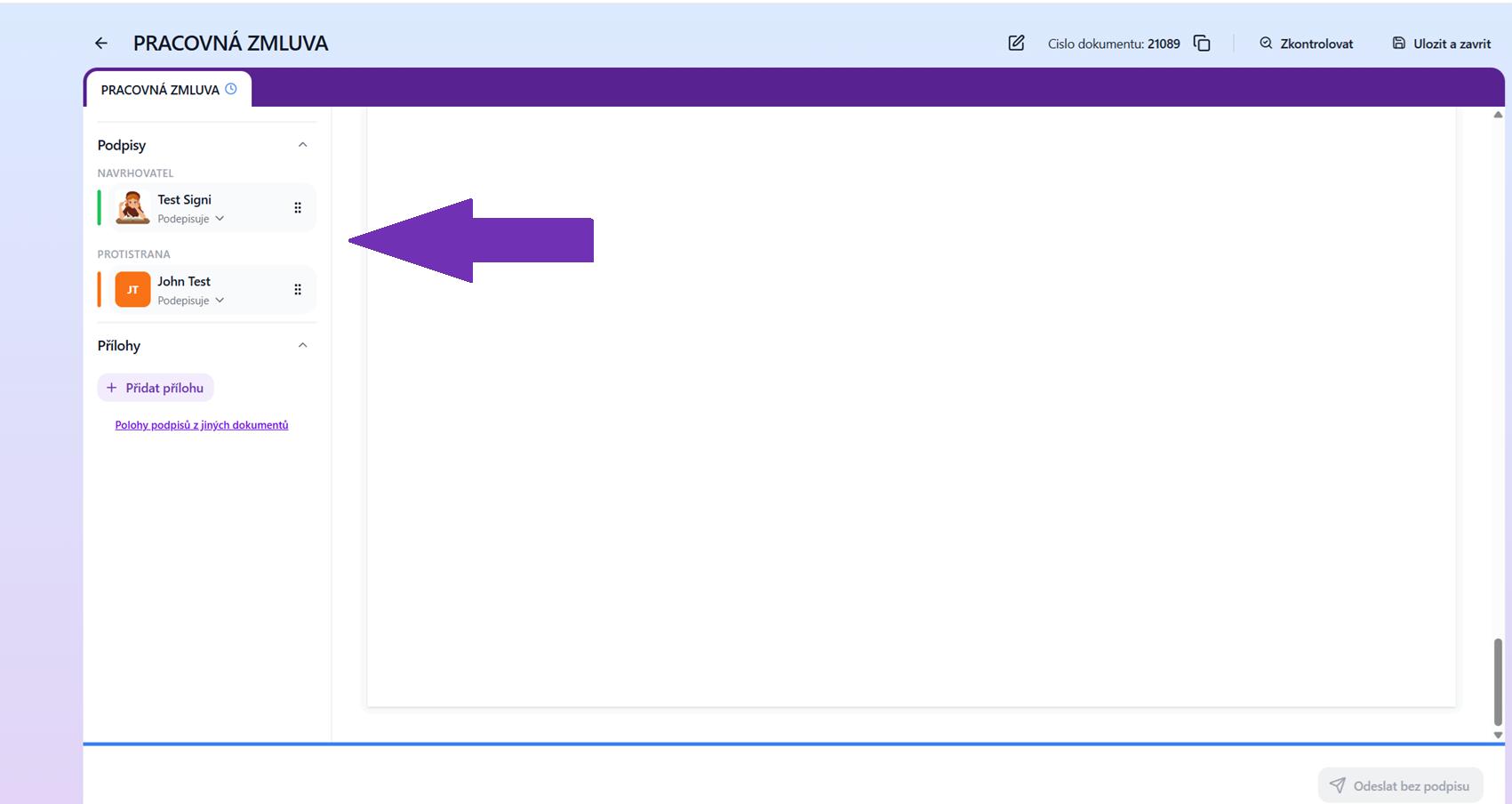
First, move to the place in the document where you want to add signature fields. Then drag them from the bottom bar directly onto the document.
In practice, it looks like this, for example:
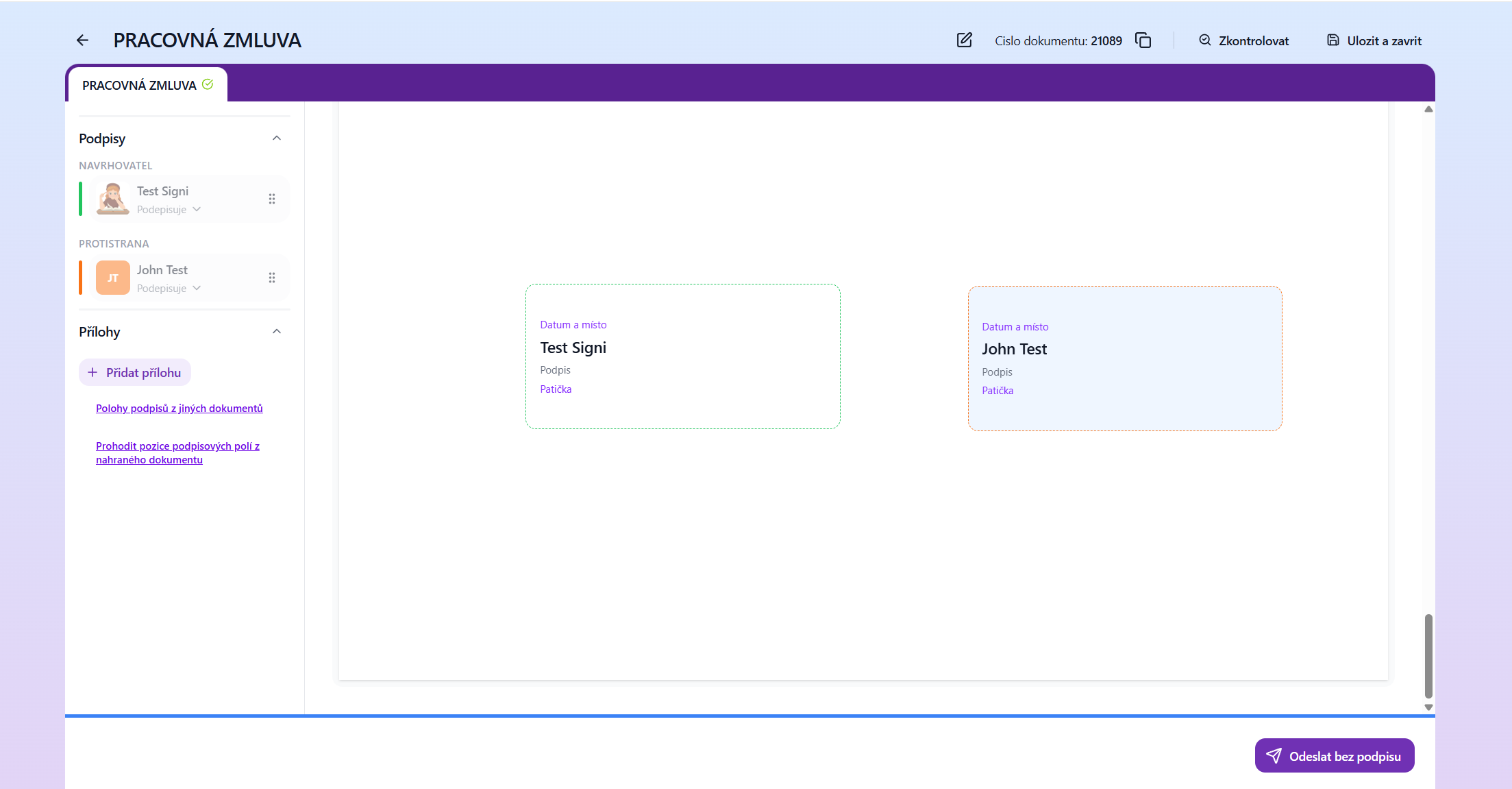
If you prefer, you can use placeholders instead of this method.
After clicking on a specific field, it is possible to turn some things off, such as displaying the date and place or footers. It is also possible to duplicate the signature and place it, for example, on every page.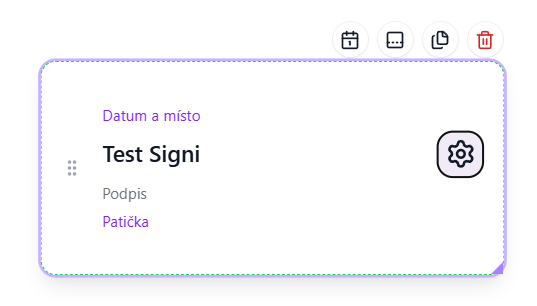
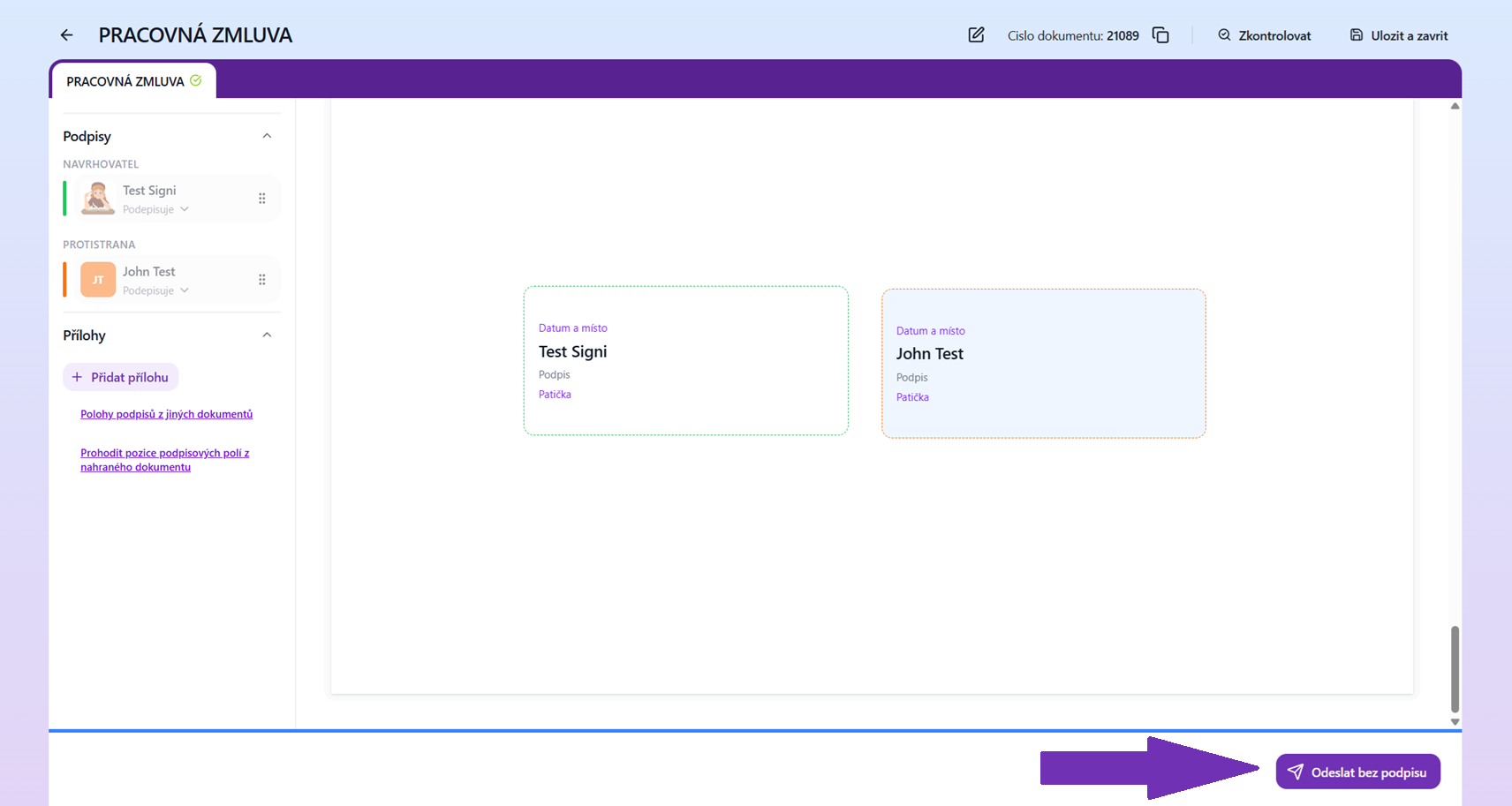
If you are not satisfied with the placement of the signature field, double-click on the signature field and use the slider to edit its position freely. Or delete it and try again. Once you are satisfied with everything, you can send the document, either by clicking Send without my signature or Continue to sign the document.
Sending the document for signature
If, according to the described scenario, someone other than the document author signs the document, after choosing Send without my signature the document will be sent directly to the counterparty.
If, according to the described scenario, the document author also signs the document, after clicking Continue to sign the document, depending on your settings, a screen is displayed for entering your phone number and verification PIN, or if you have this two-factor verification turned off, the signature field is displayed directly.
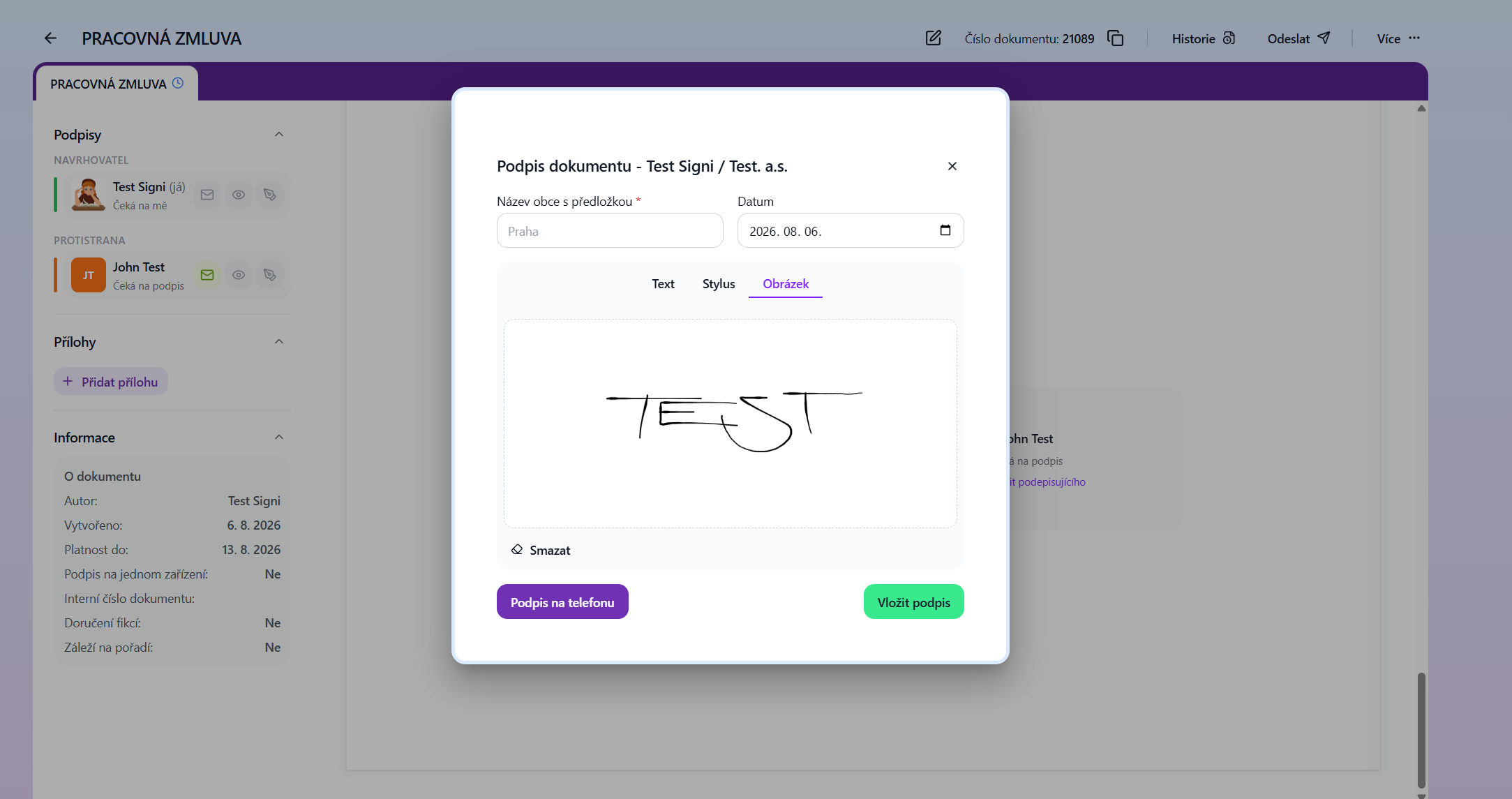
You create the signature with your finger, a stylus on a touchpad, or the mouse of any touch device or computer. Don't worry that your signature won't exactly match a pen signature on paper. An electronic signature is a combination of multiple pieces of information that make it valid.
If you have saved a sample signature in your account settings, it will automatically load into the signature field. If you have also saved a place of signing in the workspace settings, it will load too and you won't need to fill it in when signing.
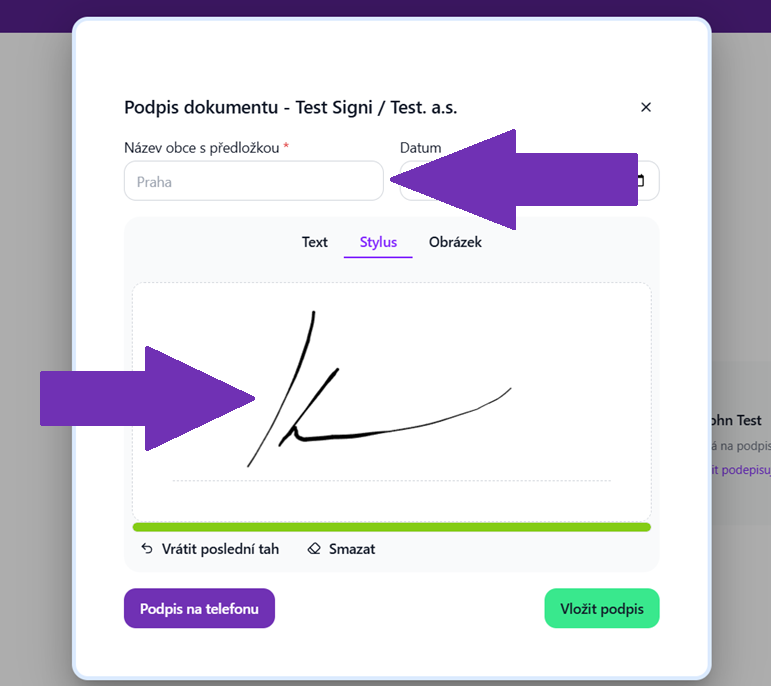
After clicking the Insert signature button, the document is validly electronically signed, provided with the necessary hashes and seal, saved, and sent to the counterparty for signing.
Document size and display
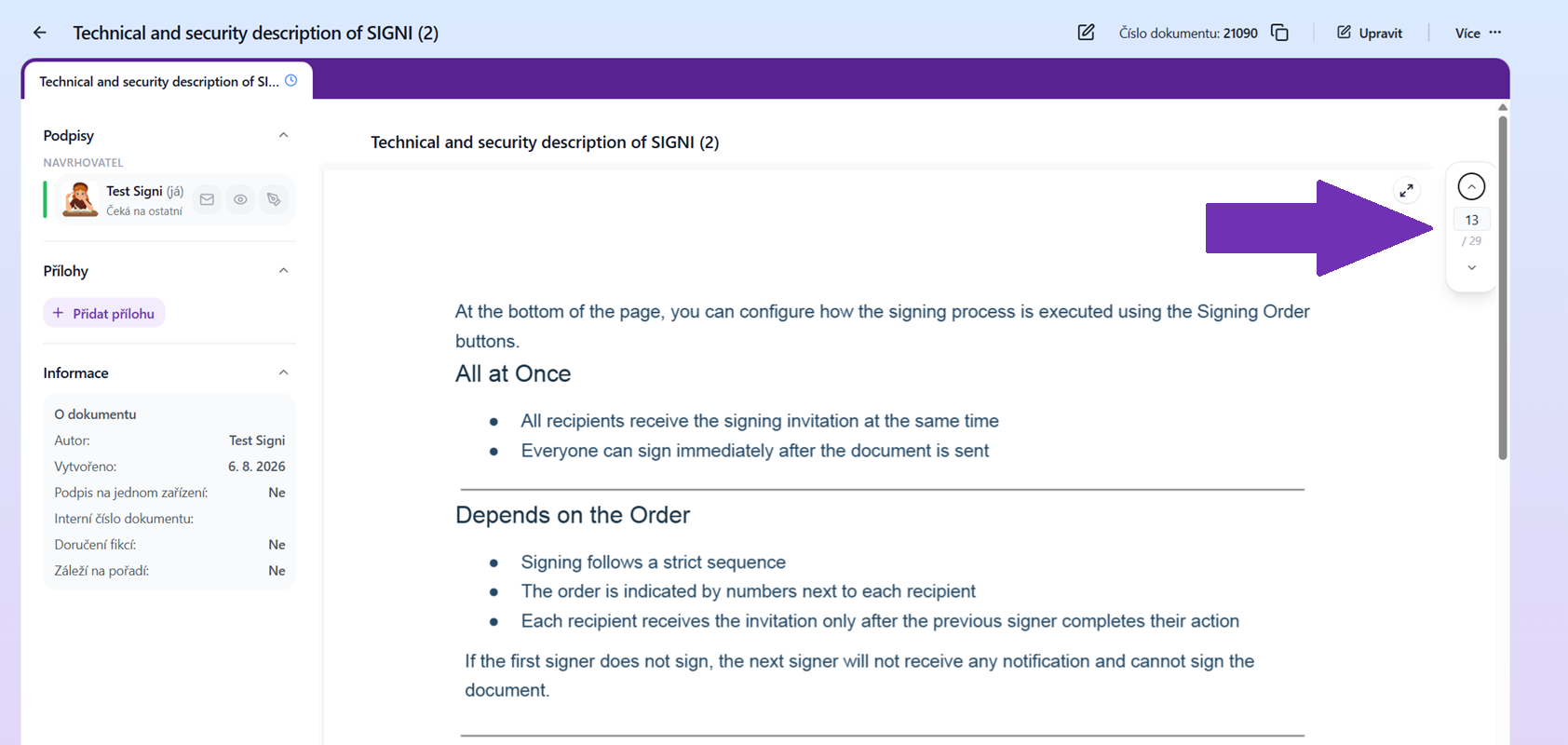
If a document contains more than 10 pages or its size exceeds 10 MB, only a preview page with scrolling capability is displayed during creation. The same principle applies when signing the document. It is now possible to process PDF files of any size in SIGNI, which expands the options for working with larger documents.
Was this article helpful?
That’s Great!
Thank you for your feedback
Sorry! We couldn't be helpful
Thank you for your feedback
Feedback sent
We appreciate your effort and will try to fix the article