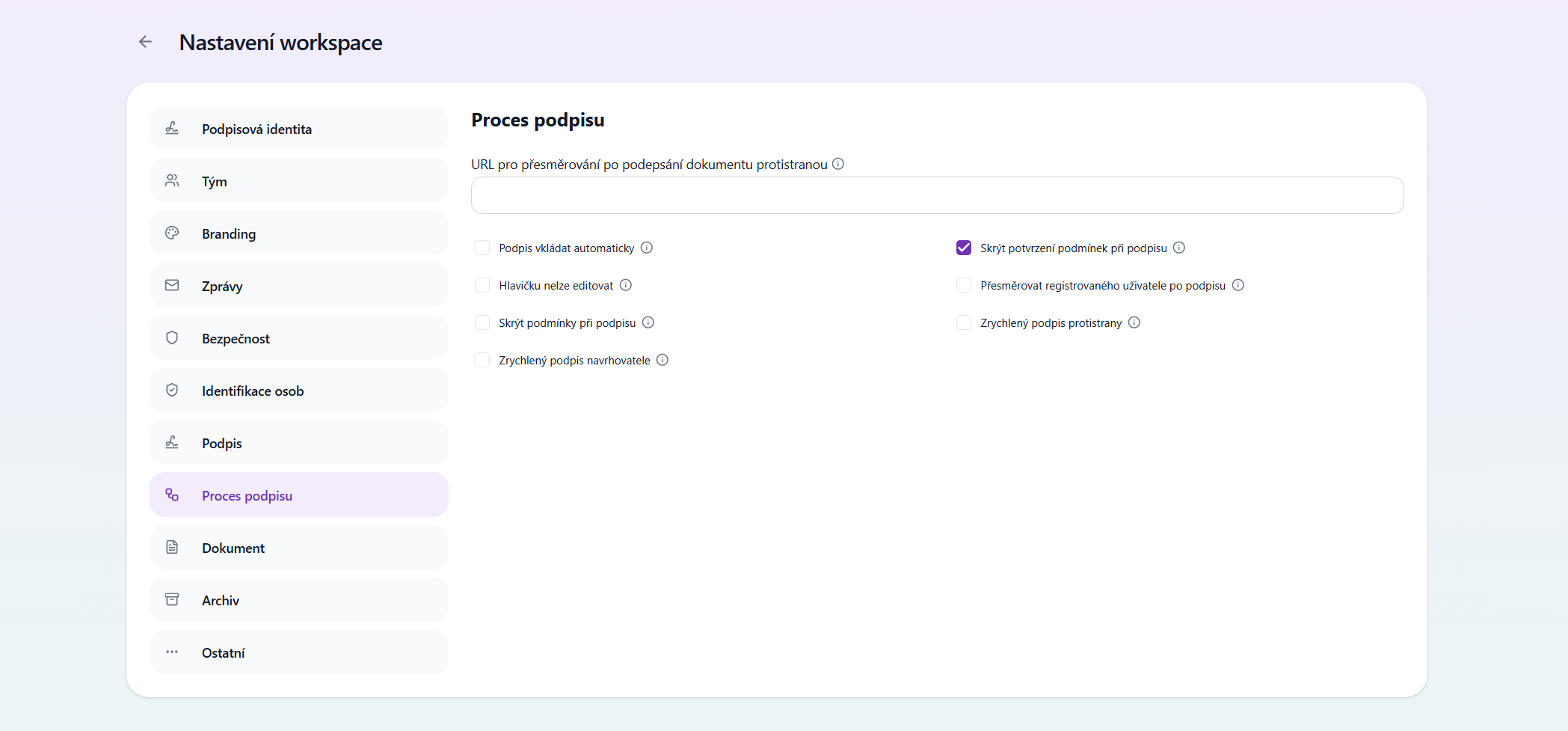
URL for redirection after signing by the counterparty
The page to which counterparties will be redirected after signing the document.
Insert signature automatically
When you create a document, your signature will be inserted automatically.
Header cannot be edited
Prevents counterparties from changing the document header. For example, they will not be able to change their name or address in template documents.
Hide terms without signature
If this toggle is checked, we will not display the terms (consent to GDPR and Terms and Conditions). We assume that you will display the consent in your own environment.
Hide confirmation of terms when signing
If this option is not checked, clients must confirm their consent to GDPR and the Terms and Conditions using a checkbox. If it is checked, no checkbox needs to be clicked; only text is displayed stating that by continuing they agree to GDPR and the Terms and Conditions.
Accelerated signing for the proposer
Enables quick signing for the proposer. The proposer can sign the document including all attachments with a single click. Redirect registered user after signing The option to redirect registered users to the page set above after signing.
Redirect registered user after signing
By default, after signing we only redirect the unregistered counterparty. When this button is checked, we will also redirect the registered counterparty.
Accelerated signing for the counterparty
If there are multiple documents to sign or the document contains multiple signature fields, the counterparty inserts the signature only once. They complete the signing process by clicking the Sign button repeatedly.
Was this article helpful?
That’s Great!
Thank you for your feedback
Sorry! We couldn't be helpful
Thank you for your feedback
Feedback sent
We appreciate your effort and will try to fix the article